
Choose a cover the video can live up to.
A useful cover makes one promise that the video answers. Start with a frame from the finished export: the actual product, demonstration or idea, with the words your viewer will see in the video.
Capture the finished composition.
- Save your video and choose Export MP4. Wait until that version is ready to download.
- Choose Review export, then Load exported video. This loads and checks the finished file.
- Open Save a cover image. Move Cover position to a clear moment, or pause the video using its playback controls.
- Wait for the frame to load, then choose Capture this frame. Inspect the image and its captured time below the controls.
- Choose Download PNG cover and save the file. A new capture replaces the previous preview; save any version you want to keep before capturing another.
The PNG includes the text, captions and footage in that exported frame. It keeps the video’s original dimensions. A 720p portrait export produces a 720 × 1280 image; a 1080p portrait export produces 1080 × 1920. Landscape dimensions are reversed. It does not upscale the image or add a new headline.
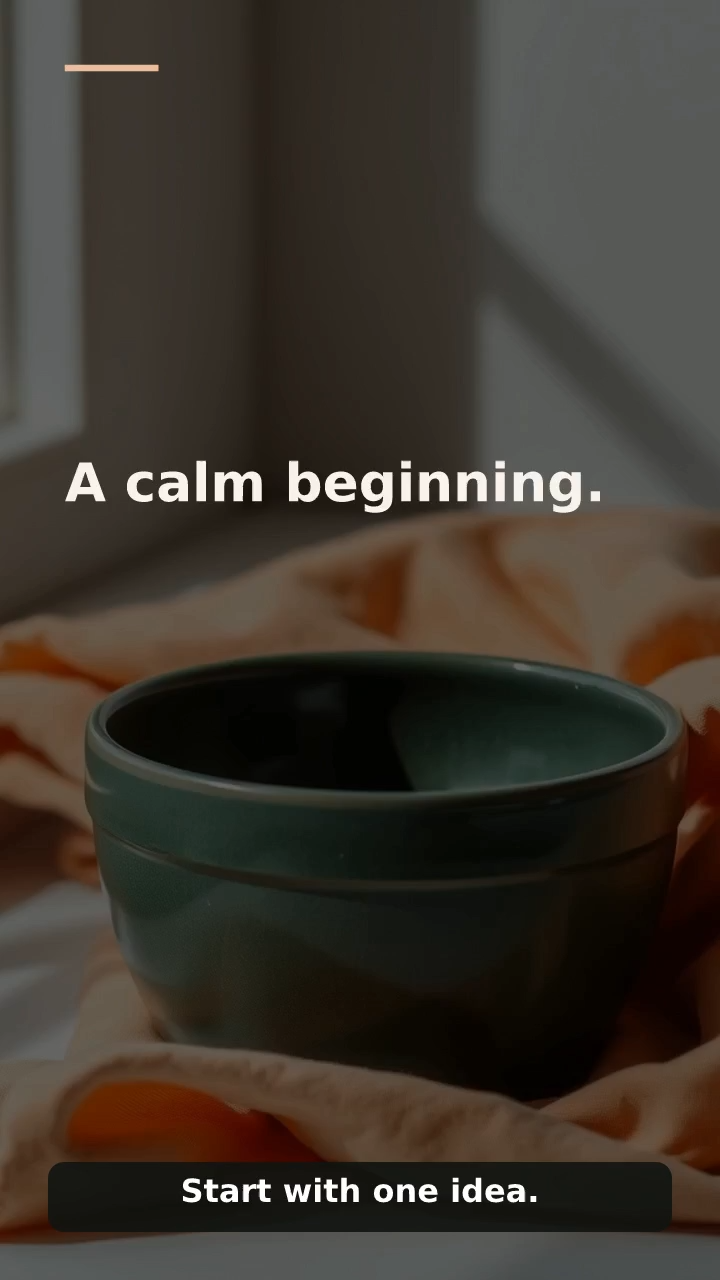
Choose a moment that reads at a glance.
For a demonstration, try the moment when the result is visible. For an explanation, try the scene that states the specific question being answered. Avoid a blink, a blurred movement, a half-finished subtitle or a frame whose meaning depends on hearing the sentence before it.
Read the cover at a small size. Can you identify its main subject and read the most important words? If the image is crowded, revise the scene and make a new export. Capturing a larger-looking preview cannot recover detail missing from the video.
A cover is part of the claim you make. Keep the result, person and product representative of what the video actually contains. Check the destination’s current cover requirements and preview its crop before publishing; this download does not set a cover on a social account.
Keep the cover and export together.
The suggested filename includes the export ID and selected time. Keep the PNG beside its MP4 so you can identify which video it belongs to. Moving the slider keeps the existing captured image until you choose Capture this frame again.
Cover capture happens in your browser. Remixure does not upload or save the PNG in your workspace, create another render job, or spend another trial render attempt. Closing the review clears its temporary cover preview. Download the file before leaving.
Capturing a cover does not approve the export or publish anything. Follow the video review guide for a workspace decision on the finished file. Start with an editable template, or improve the frame with readable captions before exporting again.
Open the video studio →